"Is my VPS actually healthy right now?" If you run Expert Advisors on a VPS or a home rig, you have probably asked yourself that at an inconvenient hour. CPU load, memory, disk space, connection status - normally, checking any of it means remoting into the machine first. MTRemote puts that picture on your phone instead.
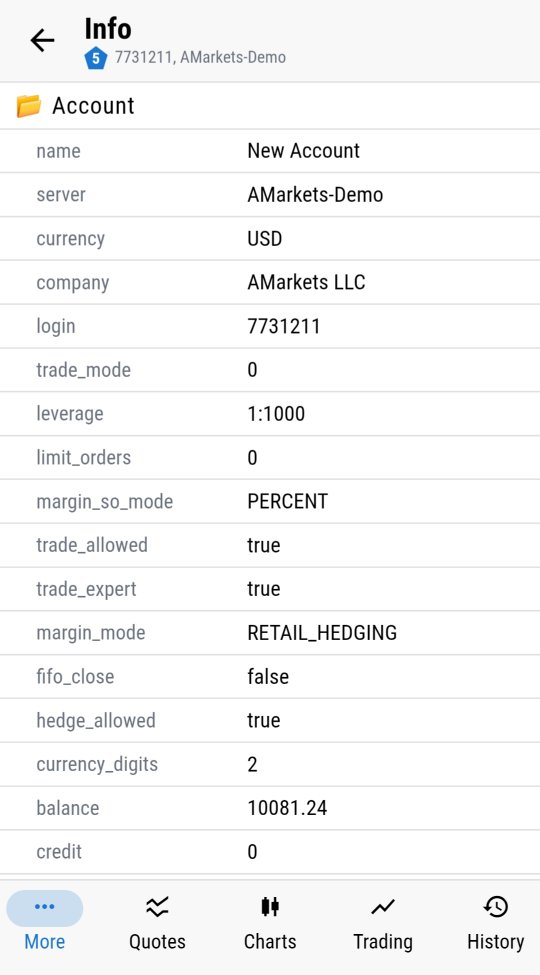
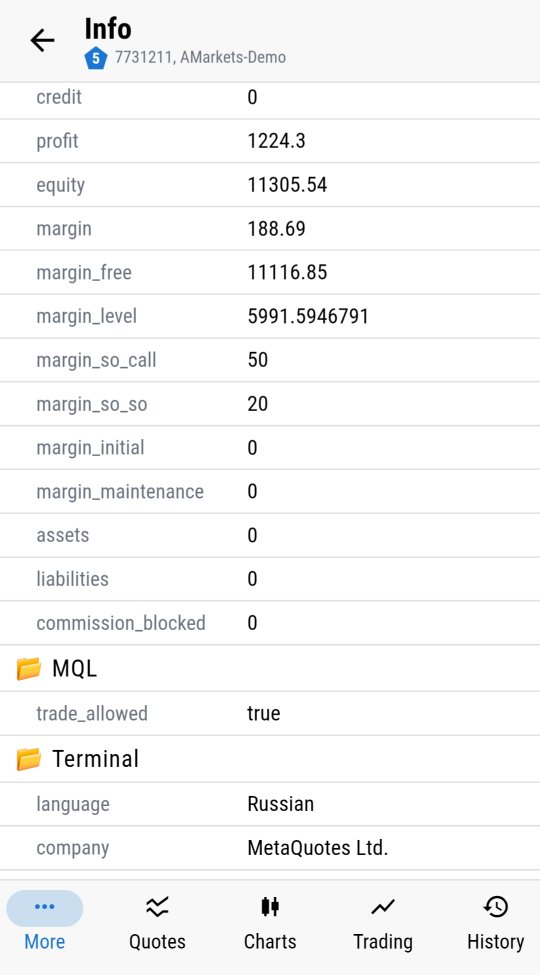
Account details
Leverage, margin mode, account currency, trade permissions, balance, equity, margin level - everything the terminal itself knows about the account, laid out the way the desktop terminal shows it. This is the same data a trader would check before deciding whether an account can safely take on a new position, available without opening the platform.
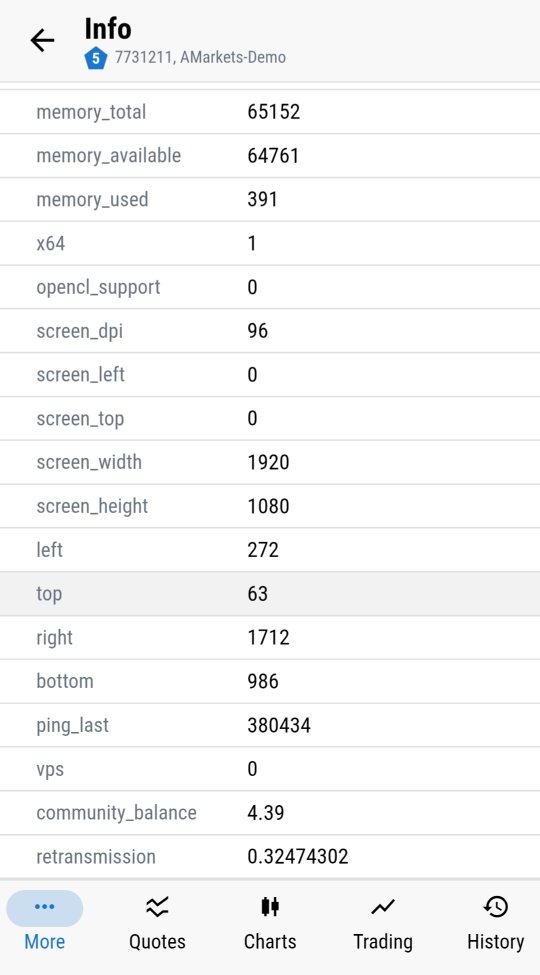
System info
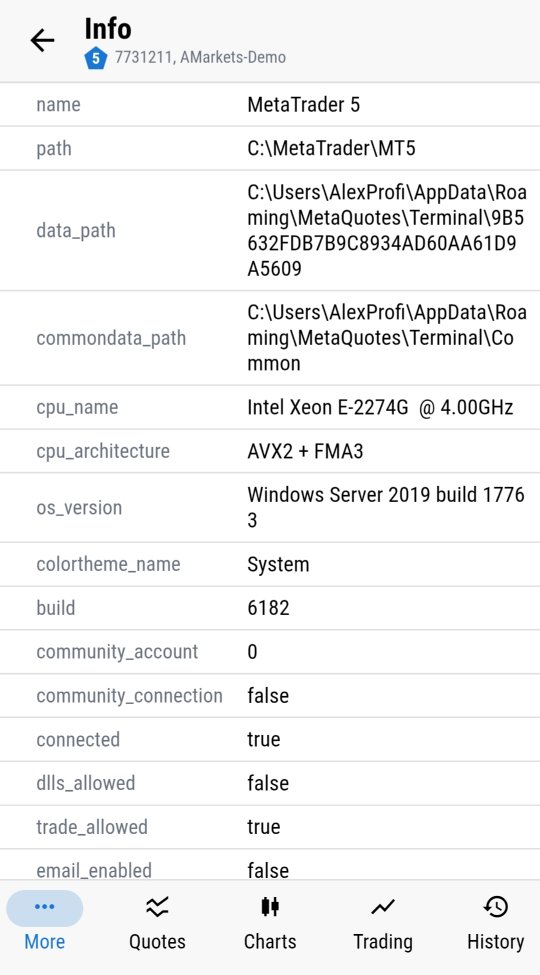
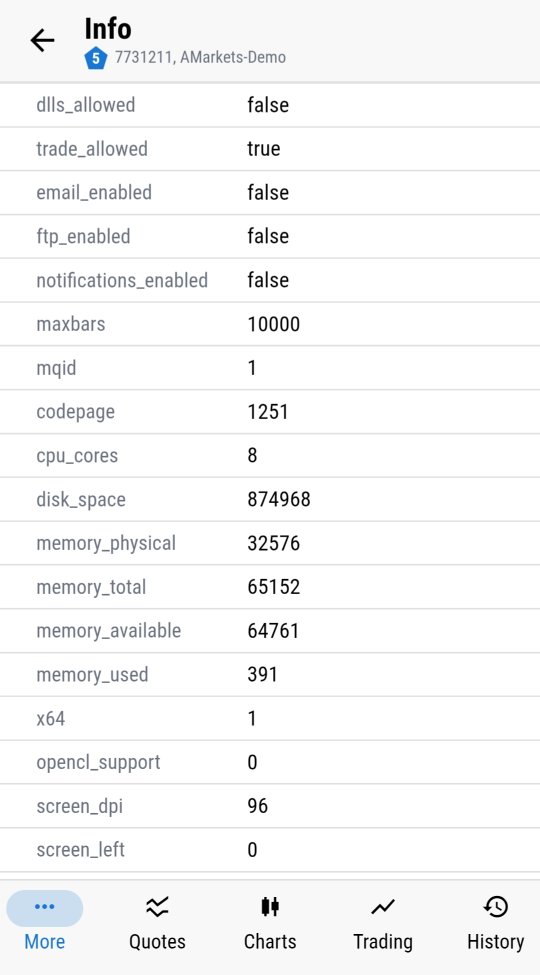
The terminal's host machine has its own vitals, and MTRemote surfaces them too: CPU model, operating system version, physical and available memory, disk space, screen resolution, even the exact data paths MetaTrader is using on that machine. If a VPS is running low on memory or disk space, this is where it shows up - ideally before it costs a trade, not after.
This is not a simplified mobile summary of the important bits. It is the same diagnostic data the desktop terminal exposes, just reformatted to fit a phone screen instead of trimmed down to fit one.
Connection health
Ping, community connection status, DLL and trade permissions - the technical details that determine whether a terminal can actually place trades right now, not just whether it is open. A terminal that looks "connected" at a glance can still have a permission or connectivity issue that only shows up here.
Why this beats a remote desktop session
Checking any of this the traditional way means opening RDP, waiting for the desktop to load, and reading the same panels manually - several minutes spent just getting to the information. Because MTAgent runs on the trading machine and talks to MTRemote directly, that diagnostic data is already on your phone by the time you open the panel.
Diagnostics are one piece of what MTRemote exposes remotely - logs, market watch, charts and trading history are covered in the rest of this series.
Ready to see your own terminal's diagnostics? Follow the setup guide to install MTAgent and connect.