MT Radar is a free program that shows the state of your MetaTrader 4 or 5 terminal on your phone: connection, account, logs, quotes and charts with the Expert Advisor's state. Setup takes 10-15 minutes and has three parts: an Expert Advisor in the terminal, an agent on your computer and a panel in your phone's browser. Below is the whole path, step by step, with pictures.
What you will need
- a Windows computer or VPS running MetaTrader 4 or 5;
- a free MQL5.com account (if you don't have one yet, we will create it along the way);
- a phone or tablet with any modern browser.
Step 1. Get the MT Radar Expert Advisor from MQL5.com
1. On the MT-Radar page, pick your terminal version and click "Get for MT4" or "Get for MT5". The Expert Advisor's page on MQL5.com opens.

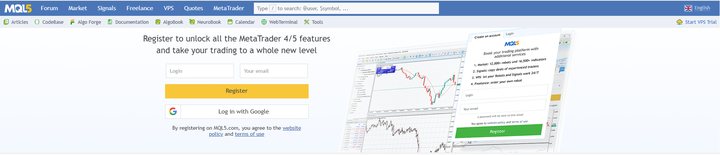
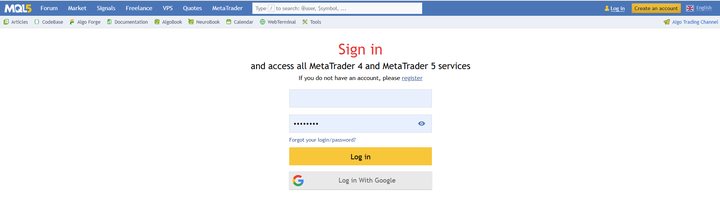
2. Log in to your MQL5.com account. If you don't have one, click "Create an account" in the top right corner and sign up - it is free. If you do, click "Log in".

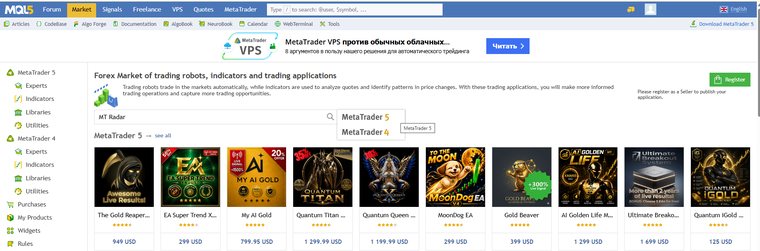
3. Open the "Market" section and type "MT Radar" in the search box. Choose your terminal version - MetaTrader 5 or MetaTrader 4. There is an easier way: click the "Get for MT4/MT5" button on the project site again and you land on the right page right away.
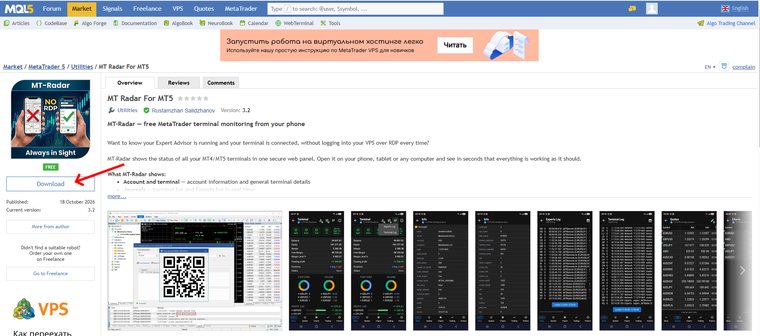
4. On the "MT Radar For MT5" (or "MT Radar For MT4") product page, click the "Download" button.
Step 2. Install the Expert Advisor in your terminal
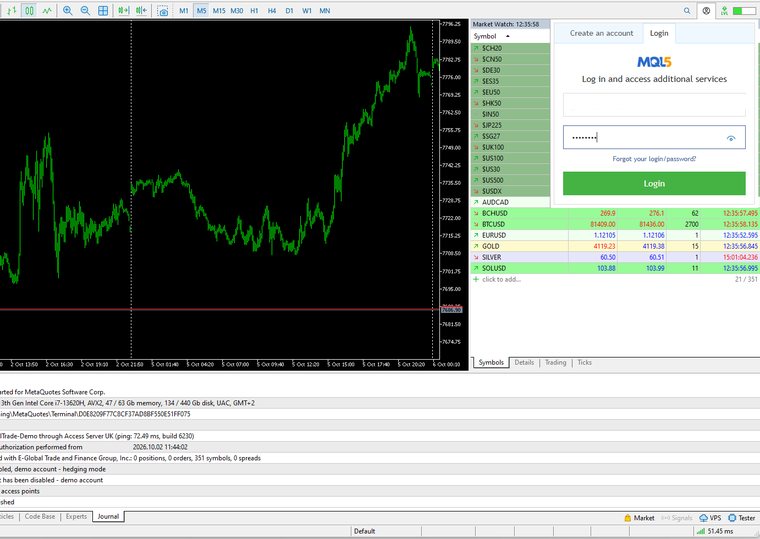
5. Open your terminal and sign in to the MQL5.community: click the profile icon on the toolbar and enter the same login and password you use on the website.
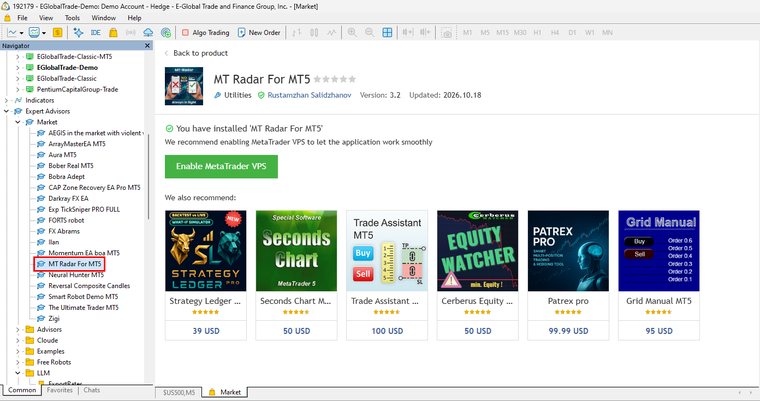
6. In the Navigator window, open the "Market" folder and find "MT Radar For MT5" - or "MT Radar For MT4" if you use the fourth version of the terminal. When the installation finishes, the terminal reports: "You have installed 'MT Radar For MT5'".
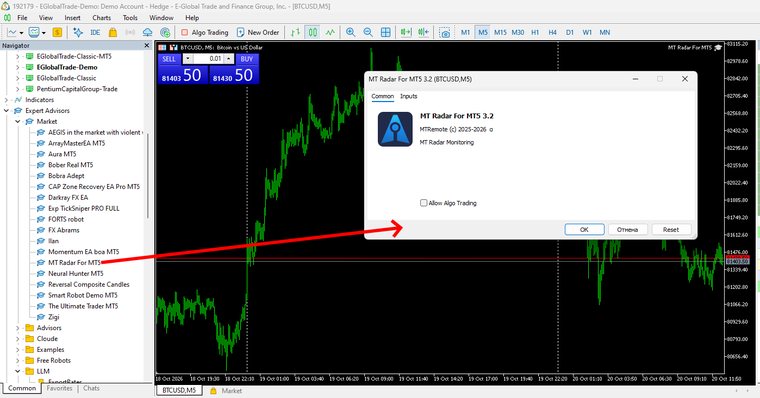
7. Drag the Expert Advisor from the Navigator onto any chart. In the settings window that opens, click "OK".
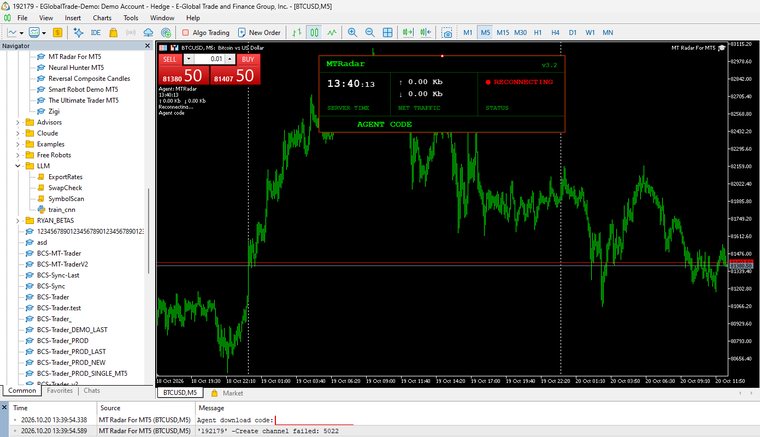
8. On first start the Expert Advisor generates an agent download code and shows it on the chart. The same code is written to the log on the "Experts" tab, in the "Agent download code" line. Copy it - you will need it in the next step.
Step 3. Download the MTAgent Radar agent
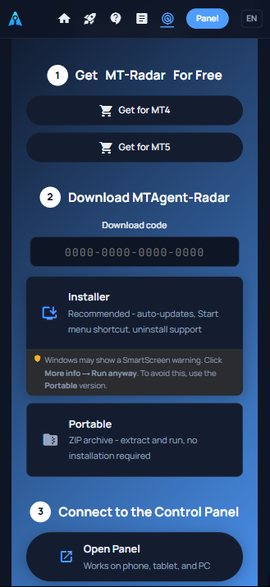
9. Go back to the MT-Radar page, enter the code in the "Download code" field and choose what to download:
- installer - the recommended option: automatic updates, a Start menu shortcut, removal through Windows;
- portable version - a ZIP archive: unpack it and run, no installation needed.
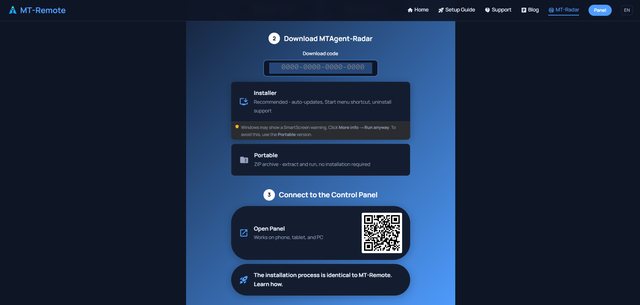
10. Don't be alarmed by security warnings - they appear for any new program without a well-known publisher:
- your browser may flag the file as suspicious - click "Keep" / "Download anyway";
- if you downloaded the installer, Windows SmartScreen may show a "Windows protected your PC" window - click "More info", then "Run anyway".
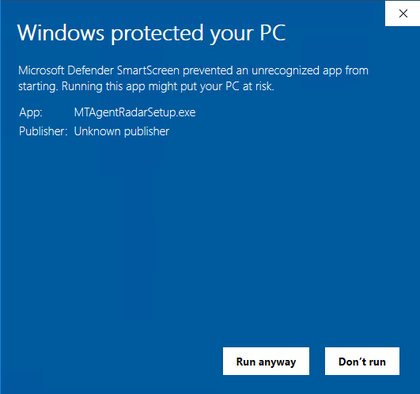
The agent contains no backdoors, worms or viruses. You can check this yourself: scan the downloaded file with any antivirus or upload it to VirusTotal.
Step 4. Install the agent and start it
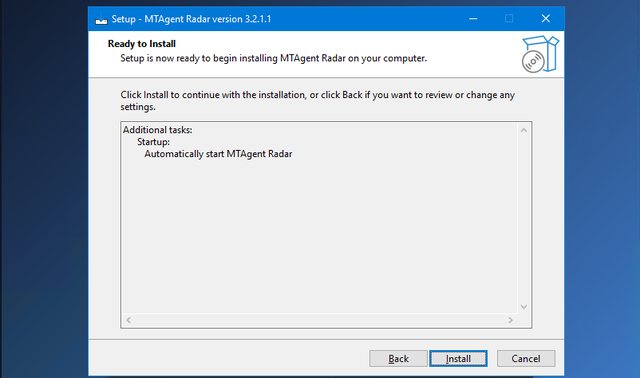
11. Run the installer and go through all the wizard's steps: pick a language, an install location and, if you like, autostart of the agent with Windows.
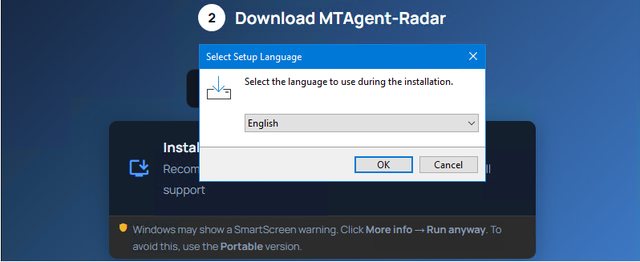
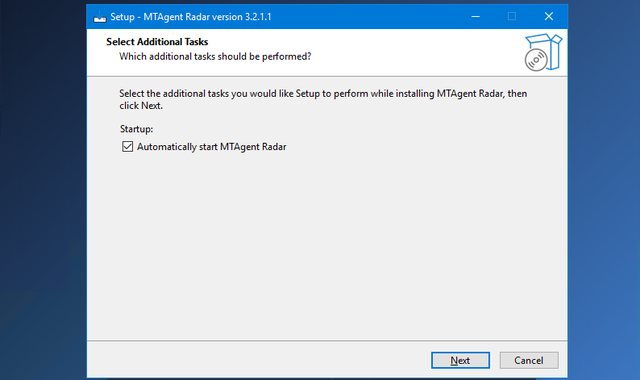
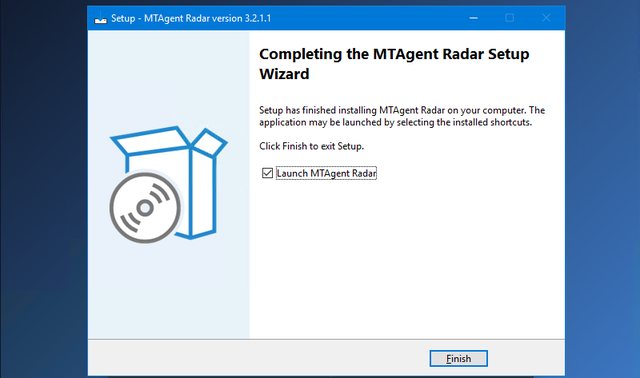
At the end, leave the "Launch MTAgent Radar" box ticked and click "Finish" - the agent starts right away.
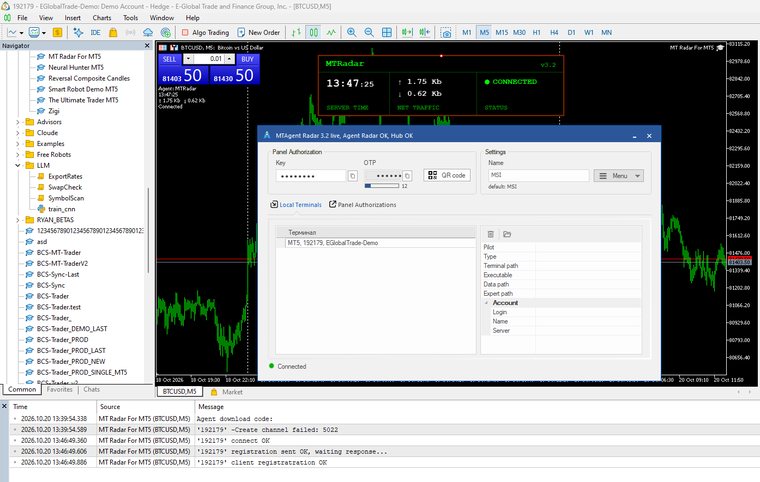
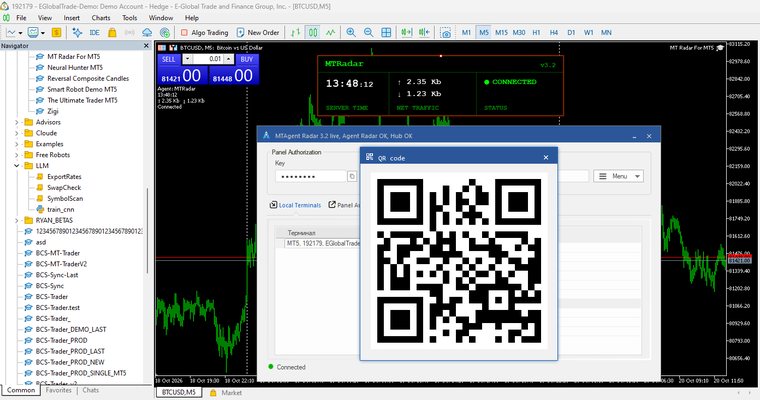
12. After launch the agent finds your terminal, and the Expert Advisor on the chart shows the CONNECTED status - the Expert Advisor and the agent are linked. If "RECONNECTING" appears on the chart for a few seconds, that is normal, just wait.
Step 5. Connect the panel on your phone
13. Open the MT-Radar site on your mobile device and tap "Open Panel".
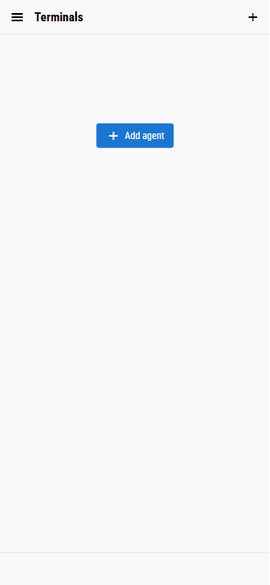
14. In the panel, tap "Add agent".
15. In the agent window, click the "QR code" button - the agent shows a QR code for connecting. This code contains the key and a one-time password, so don't show it to anyone.
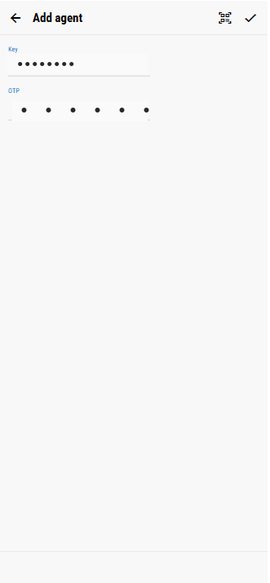
16. In the panel, tap the scanner icon and point the camera at the QR code. If scanning is inconvenient, type the key and the one-time password (OTP) from the agent window into the "Key" and "OTP" fields by hand.
17. Done - you are in the panel! Your terminal appears in the list. If several agents are connected, they are shown as separate groups - pick the terminal you need.
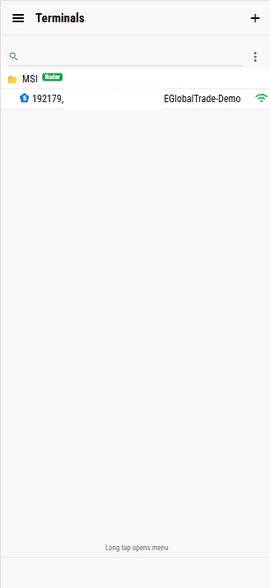
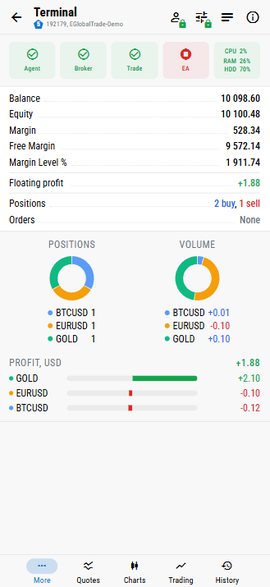
Tap the terminal and you will see everything going on with it: balance, equity and margin, the Experts and Terminal logs, Market Watch quotes and charts with the Expert Advisor's state.
If something goes wrong
- The download code is not accepted. Make sure you entered all 16 digits of the code from the Expert Advisor's log. After several wrong attempts in a row, input is locked for a few minutes - wait and try again.
- The code is not visible on the chart. Open the "Experts" tab at the bottom of the terminal and look for the "Agent download code" line.
- The Expert Advisor on the chart shows RECONNECTING. Wait a few seconds and make sure the agent is running on the same computer as the terminal.
- You need help. Ask in the product discussion on MQL5.com - we try to answer everyone.
What's next
MT Radar is a window into your terminal: it shows, but changes nothing. If you want not only to watch but also to control - switch algo trading on and off, attach and remove Expert Advisors, open, close and modify trades, switch accounts - take a look at MT-Remote: the same panel, the same level of protection, with control buttons added. You can try it right now in the free demo.