Get MTRemote EA
The connection between MetaTrader and MTAgent is made through an Expert Advisor installed directly in the terminal via MQL Market.
The EA is licensed separately for each platform: MT4 and MT5 are different products on MQL Market.
How to Install the EA
- Open MetaTrader and go to MQL Market (the "Market" tab in the terminal)
- Search for "MTRemote EA" or follow the link above
- Choose a plan and follow the payment instructions
- After payment, the EA will be automatically installed in the terminal
- Drag the MTRemote EA onto any chart
Install the EA in each MT terminal you want to manage remotely.
Install MTAgent
MTAgent is a Windows utility that runs on the computer with your MT terminals and provides the connection between them and the MTRemote control panel.
MTAgent must be installed on every computer where your MT terminals are running.
How to Install
- Download the MTAgent installer using the link below
- Run the installer and follow the instructions
- After installation, MTAgent will appear in the system tray (notification area)
- Open the agent window by double-clicking the tray icon
Windows may show a SmartScreen warning. Click More info → Run anyway. To avoid this, use the Portable version.
MTAgent Interface
After launch, you will see a window with connection status. The terminal list will appear after MTRemote EA is launched in MT.
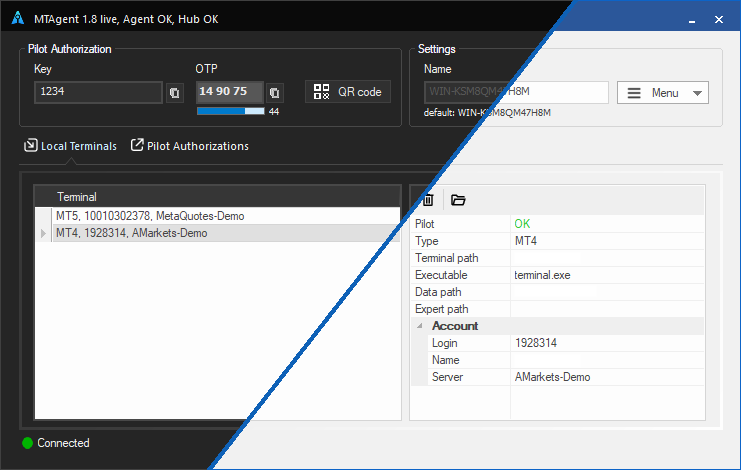
The agent interface displays:
- Terminal list - MT4/MT5 terminals where MTRemote EA has been launched
- Connection status - link to the MTRemote server
- Key / OTP - credentials for the control panel
Connect to the Control Panel
After installing MTAgent and the EA, everything is ready for remote management.
- Make sure MTAgent is running and shows "Connected" status
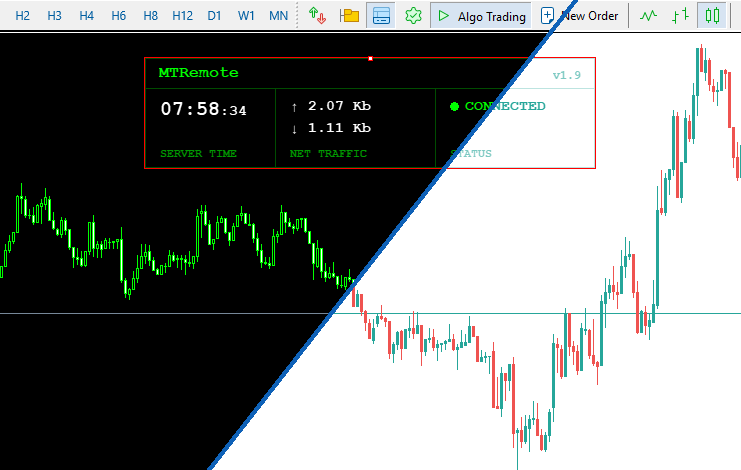
- Make sure the MTRemote EA is attached to a chart and is active (smiley face in the top-right corner, the panel shows Connected status and a running clock)
- Open the MTRemote control panel in a browser on any device
- Enter the key and OTP from the MTAgent window - or just scan the QR code shown there using the scan button in the panel
- Done - you can see all your terminals and manage them
Add the control panel to your phone's home screen for quick access - it works as an app (PWA).