Short answer: no. The MetaTrader 4 and MetaTrader 5 apps for Android and iOS cannot run Expert Advisors - and they can't run custom indicators or scripts either. An EA only works inside the desktop terminal on Windows, on your own PC or on a VPS.
That doesn't mean your phone is useless for algo trading. It means the phone's job is different: not to run the EA, but to keep you in control of the terminal where the EA runs. Below is what the mobile app can and can't do, and three ways to fill the gap.
What the MT5 mobile app can do
- Show your account, balance, equity and margin
- Show open positions and history - including trades your EA opened, because it's the same trading account
- Place and close trades manually, set Stop Loss and Take Profit
- Draw charts with the built-in indicators
- Receive push notifications through your MetaQuotes ID
What it can't do
- Run, attach or remove an Expert Advisor
- Change an EA's input parameters
- Show the Experts log of your desktop terminal - so you won't see why your EA didn't open a trade
- Show the comments your EA prints on the chart
- Apply your saved chart templates
- Tell you whether the desktop terminal itself is still running and connected
The last point matters most. The mobile app connects straight to your broker's server, not to your terminal. If your VPS rebooted overnight and the EA is no longer running, the mobile app will still show your account as perfectly normal - just without any new trades.
Why it works this way
Expert Advisors are compiled MQL programs (.ex4 / .ex5) that run inside the desktop terminal. The mobile apps are separate, lightweight trading clients that don't include that runtime. So an EA always needs a Windows machine that stays on: a home PC, a rented VPS, or MetaQuotes' built-in virtual hosting.
Three ways to stay in control from your phone
1. Remote desktop (RDP, AnyDesk, TeamViewer). You see the full desktop terminal, so technically you can do everything. In practice it means a desktop UI squeezed onto a phone screen, a slow connection over mobile data, and - for RDP - an open port on your VPS that bots constantly try to break into.
2. Mobile app plus push notifications. If your EA calls SendNotification, it can send alerts to your phone through your MetaQuotes ID. This is monitoring, not control: you'll learn that something happened, but you can't stop the EA, read the log or change anything. And it only works if the EA's author built the notifications in.
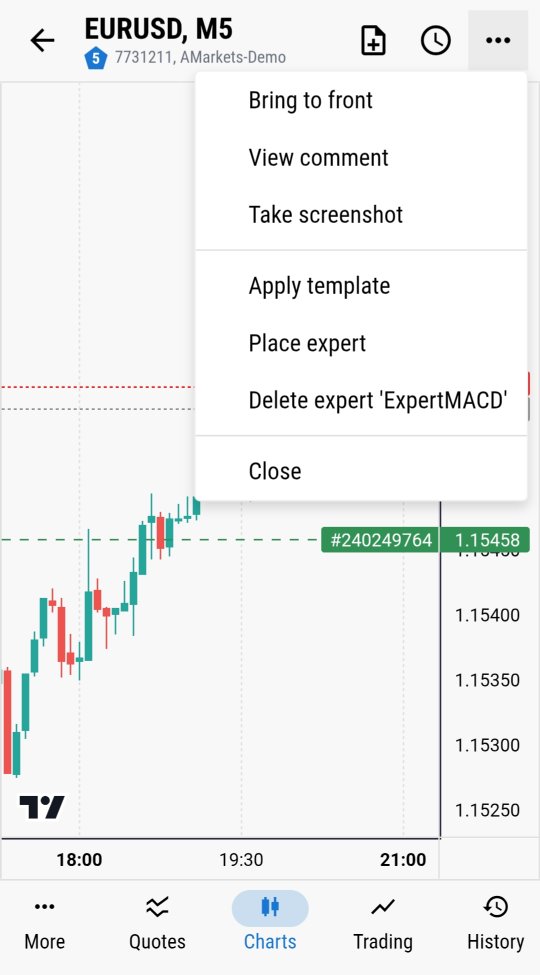
3. A remote control panel for the terminal itself. This is what MTRemote does. A small EA on a chart links your terminal to MTAgent on the same PC or VPS, and you open the control panel in your phone's browser. From there you can attach or remove any EA, apply templates, read the Experts and Terminal logs, see the EA's chart comments and trade - all without RDP, with end-to-end encryption.
| Mobile app | Remote desktop | MTRemote | |
|---|---|---|---|
| Attach / remove an EA | No | Yes | Yes |
| Experts log | No | Yes | Yes |
| Terminal online status | No | Yes | Yes |
| Built for a phone screen | Yes | No | Yes |
| Needs an open port on the VPS | No | Yes (RDP) | No |
What to do in practice
- Keep your EA running in the desktop terminal on a PC or VPS that stays on.
- Keep the official mobile app for quick manual trades and a glance at the account.
- Add a way to see and control the terminal itself - so you'll know within minutes, not hours, if the EA stopped, and can fix it from wherever you are.
See how chart and EA control looks on a phone in Charts and EA Control on MT4/MT5, Right From Your Phone, or request a free live demo to try it on a real terminal before installing anything.