MT-Remote - Manage Your MetaTrader Remotely, No RDP Needed

Control all your MetaTrader terminals from your phone or any computer. Orders, charts, notifications - all in one place.

Why MT-Remote

Everything a trader needs for remote monitoring and control

Access from Any Device

Open the control panel from your phone, tablet, or another PC - all you need is a browser

All Terminals at Once

Monitor multiple MT4/MT5 terminals on different computers from a single dashboard

Push Notifications

Instant alerts when a terminal or agent starts or stops

Security

End-to-end encryption - the server sees nothing, the key stays only with you

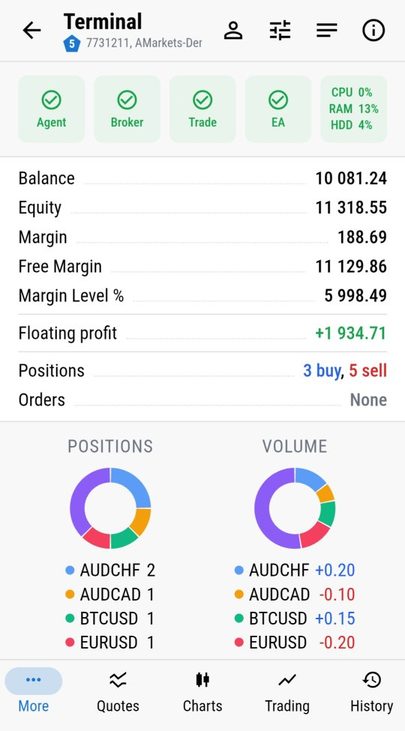
Every Terminal's Full Status, At a Glance
LIVE DASHBOARD

Every Terminal's Full Status, At a Glance

  • Agent, Broker and Trade connection status at a glance
  • CPU, RAM and disk load of the machine running the terminal
  • Balance, equity, margin and margin level
  • Floating profit and the number of open positions and orders
  • Positions and volume broken down by symbol on donut charts

Everything updates live, the moment it changes on your terminal.
Read more →

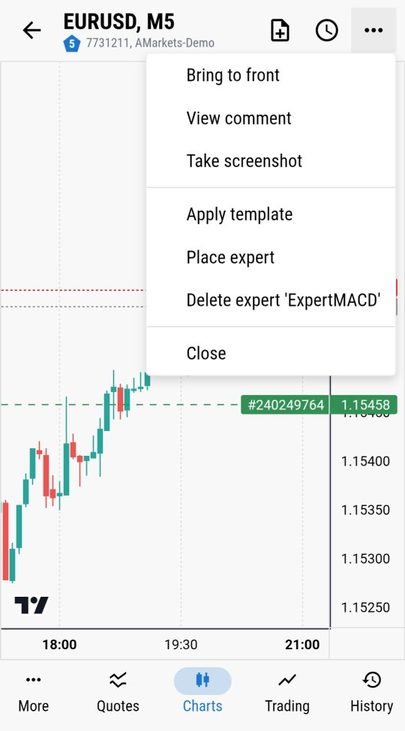
Any Action on the Selected Chart
CHART CONTROL

Any Action on the Selected Chart

  • Attach any Expert Advisor from the list available on your terminal
  • Stop or remove an Expert Advisor from the chart
  • Apply any of your saved templates
  • Get a real screenshot of the chart from your terminal
  • View the comments your EA prints on the chart
  • Change the timeframe and symbol of the selected chart

Any command is executed immediately on your terminal.
Read more →

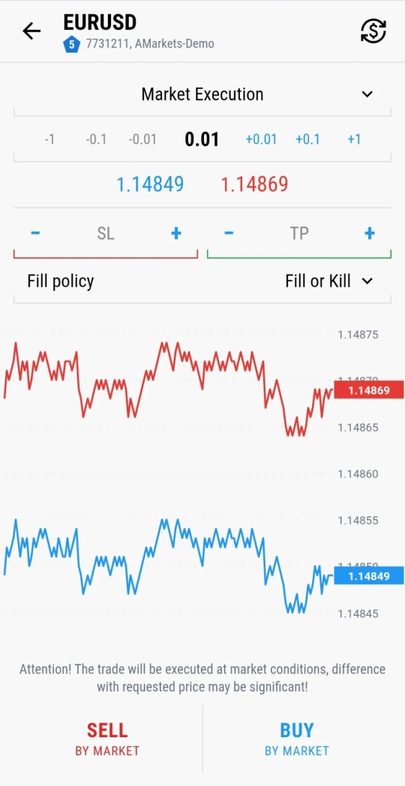
Trade Like in the Terminal
TRADE CONTROL

Trade Like in the Terminal

  • Open any position or order
  • Set and adjust Stop Loss / Take Profit levels
  • Pick any symbol and lot size
  • Close or modify any order already placed

Every trading action you'd do at the desktop is available right here.
Read more →

How It Looks

A closer look at the panel itself

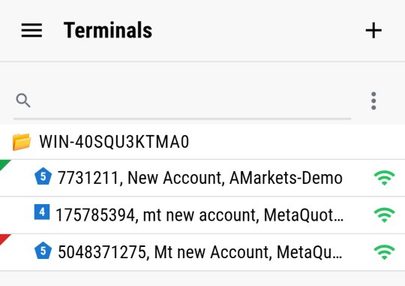
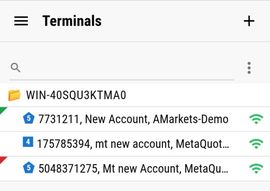
All your terminals, one list
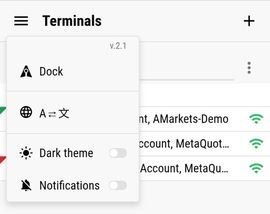
The MT-Remote menu - language, theme, notifications
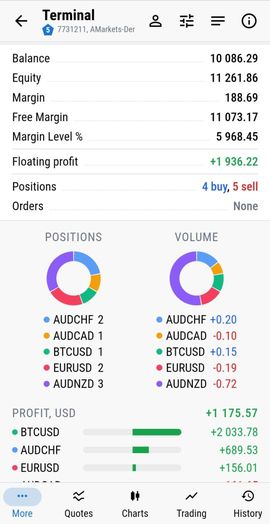
Live dashboard, profit broken down by symbol
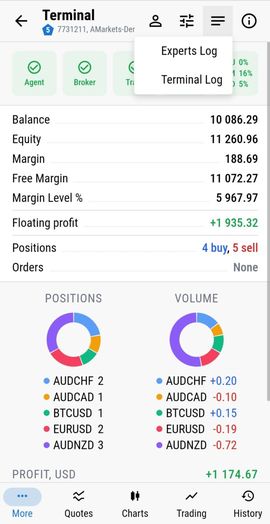
Experts Log and Terminal Log, one tap away
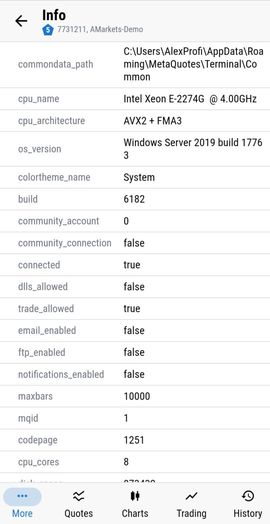
Full account and system diagnostics
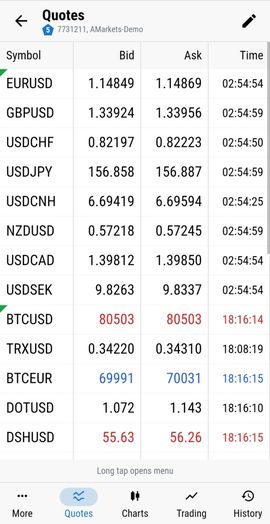
Live quotes for every symbol
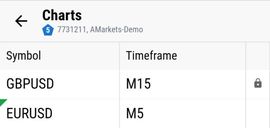
Every open chart, one list
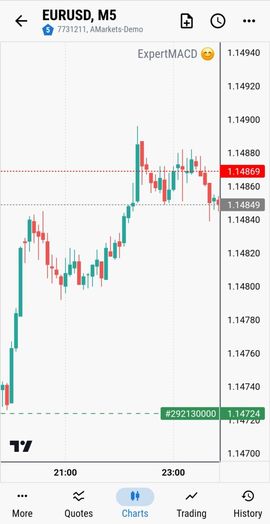
Live candlestick chart with a running EA
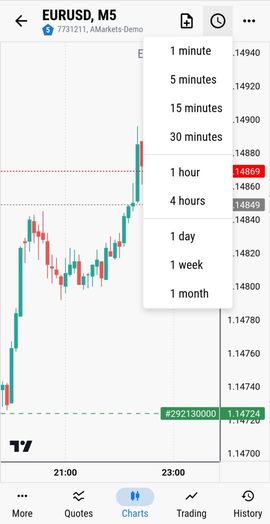
Switch timeframes in one tap
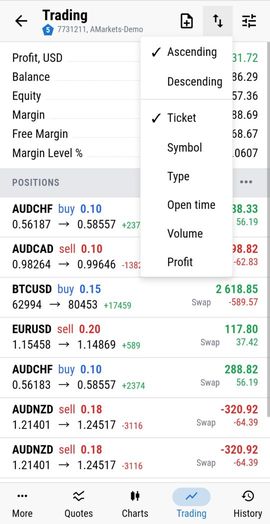
Open positions, sorted your way
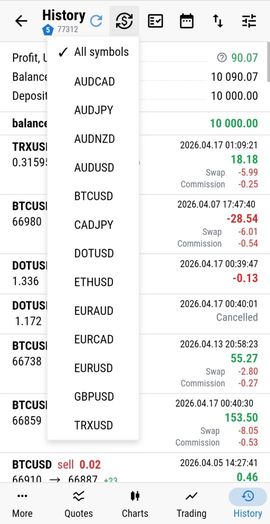
Trade history filtered by symbol

How It Works, Technically

Three components, one encrypted chain from chart to phone

ON THE CHART

MT Remote for MT4 / MT5

Attached to a chart in each terminal. Links to MTAgent over a local pipe and reports connection status - it never talks to the network itself.

→
ON THE PC

MTAgent

Installed once, starts with regular user rights, opens no inbound ports. Relays everything to your client end-to-end encrypted.

→
ON YOUR PHONE

MT-Remote Panel

Web app that works in any browser. Connects to the agent by key and OTP, or by scanning a QR code.

How It Works

Three simple steps - and you're managing terminals remotely

1

Get MT Remote for MT4 / MT5

Get MT Remote for MT4 / MT5 on MQL Market and attach it to a chart in your terminal

2

Install MTAgent

Download and run the utility on the Windows PC with your MT terminals

3

Manage Remotely

Open the control panel from any device and control all your terminals

Security

The trading logic never leaves your terminal - only encrypted status and commands travel

End-to-end encryption, and the key never leaves your side

  • End-to-end encryption between your MTAgent and the web client.
  • The key is derived from a password you set yourself - it is never sent to any service.
  • No intermediate point can decrypt the content.
  • The panel on the chart loads no external libraries and only talks to the local MTAgent over a pipe.

Who It's For

If any of this sounds familiar, MT-Remote was built for you.

  • 01Anyone working with several brokers at once
  • 02Anyone running Expert Advisors on a home PC or a VPS
  • 03Anyone tired of switching between five apps on their phone
  • 04Anyone who wants to see and control their terminals without turning remote access into an RDP quest
All your terminals, one list

Questions traders ask

Short answers to what MetaTrader users most often ask on forums

Can I run an Expert Advisor on MT4 or MT5 mobile?

No. The MetaTrader mobile apps for Android and iOS cannot run Expert Advisors, indicators or scripts - an EA works only in the desktop terminal on Windows, on your PC or a VPS. What you can do is leave the EA where it runs and control it from your phone: MT-Radar shows its state for free, and MT-Remote also lets you attach and remove EAs and trade.

How can I control an Expert Advisor from my phone?

Install the MTAgent agent on the computer or VPS with the terminal, add the EA to a chart and open the MT-Remote panel in your phone's browser. From the panel you can attach or remove an Expert Advisor, apply a chart template, switch algo trading on or off, manage positions and read the logs. If you only need to watch, the free MT-Radar shows the same terminal in view-only mode.

Is there a web interface for MT4/MT5?

Yes. The MT-Remote panel is a web app: it opens in any browser on a phone, tablet or another PC, with nothing to install on the device. It reaches your terminal through the small MTAgent program that runs next to it.

What can replace RDP or AnyDesk for a terminal on a VPS?

RDP and AnyDesk show the whole Windows desktop, which is awkward on a phone screen, slow on mobile data and, for RDP, needs an open port that bots constantly try to break into. MTAgent opens no inbound ports and the traffic is end-to-end encrypted; the panel shows only what matters - terminals, logs, positions, charts - in a layout made for a phone.

How do I get my EA's logs and alerts on my phone?

The panel shows the Experts and Terminal logs of your terminal with history by date, and the state of the EA on the chart; both the logs and the push notifications about a terminal or agent starting or stopping are available in the free MT-Radar as well as in MT-Remote. There is no separate bot to set up - everything is in one panel.

Can I manage a terminal on a VPS without RDP?

Yes. Install MTAgent on the VPS next to the terminal, connect the panel with a QR code, and from then on you manage it from the browser - no remote desktop session needed. MT-Radar gives you monitoring for free, MT-Remote adds control.

Get MT-Radar for free Try a free demo

See how it works before you install it

Try a free demo

New: MT-Radar - free terminal monitoring

Watch account info, logs, quotes and charts with EA state from your phone - free, with no trading access.

Learn about MT-Radar

Ready to Start?

MT Remote for MT4 and MT Remote for MT5 are distributed via MQL Market as Expert Advisors (EA).