Most traders don't run one MetaTrader terminal - they run several, often across more than one machine: a VPS for the algo that never sleeps, a home rig for testing, maybe a laptop for a second broker. Checking on all of them the traditional way means remoting into each machine in turn. MTRemote starts from a different premise: every terminal you run, in one list, on your phone.
Every terminal, one list
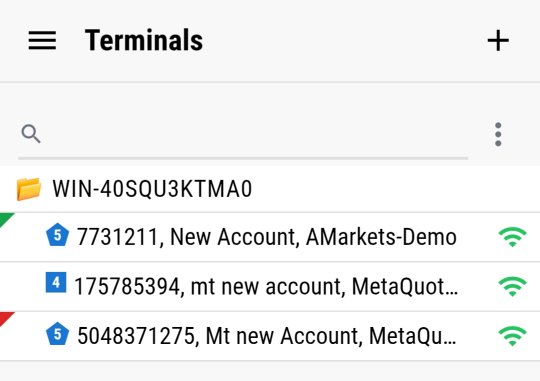
Open the app and the first thing you see is exactly that - every MT4 and MT5 terminal MTAgent has picked up, grouped by the machine it runs on, with a live status indicator next to each one. No switching between remote desktop windows to remember which VPS has which account open.
Built for the panel itself
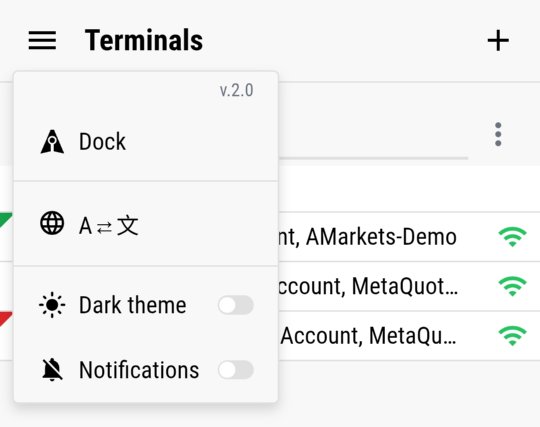
The menu is unmistakably MTRemote's own - branded as Dock, with a language switcher, a dark theme toggle, and notification settings right there. This isn't a generic remote-desktop wrapper around the terminal's own UI; it's an interface built specifically for checking on MetaTrader from a phone.
The full picture on open
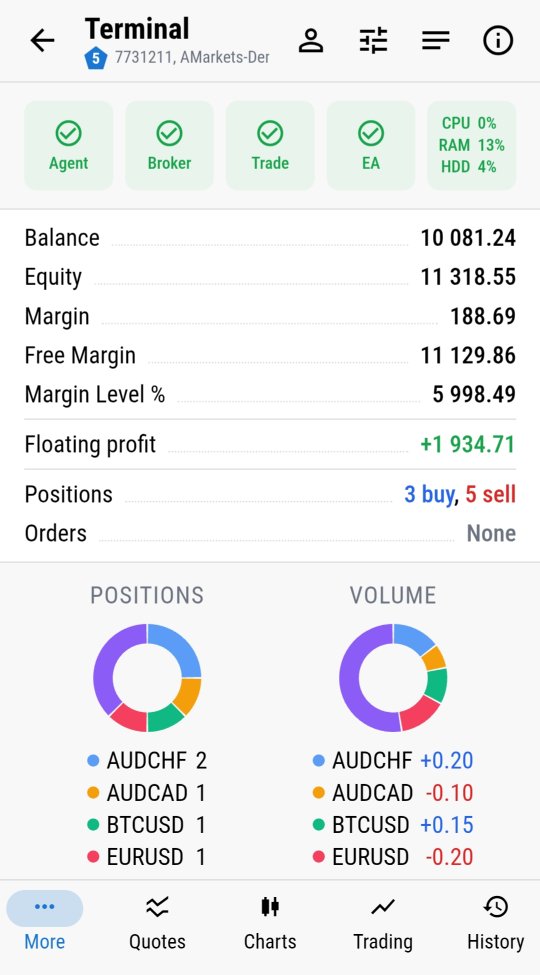
Tap into a terminal and the dashboard shows what matters first: Agent, Broker, Trade and EA status at a glance, balance and equity, floating profit, open positions and orders - and a pair of donut charts breaking down exposure by symbol, for both position count and volume. Everything you'd check first thing at the desktop, in one screen.
Switch accounts without switching devices
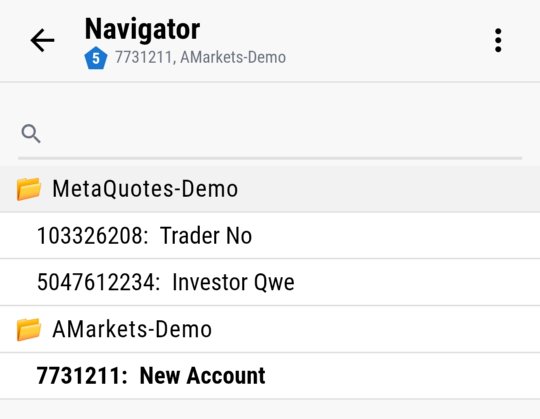
The Navigator lists every account under every broker connection MTAgent knows about. Moving from a live account to a demo, or between two brokers, is a tap in the same list you'd use on the desktop terminal - no need to remote into a different session for each one.
One tap for Algo Trading
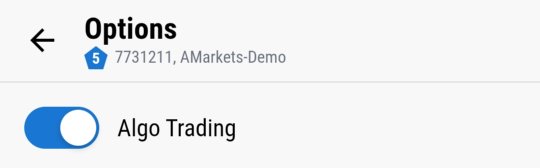
The single switch that decides whether any EA can trade at all is right in the terminal's options - flip it off from your phone the moment you need every robot on that terminal to stop, without touching the machine itself.
This is the starting point - the rest of this series goes deeper into what's behind each of these screens: logs and monitoring, full system diagnostics, Market Watch, chart-side EA control, and the complete trading workflow.
Ready to see your own terminals like this? Follow the setup guide to install MTAgent and connect.