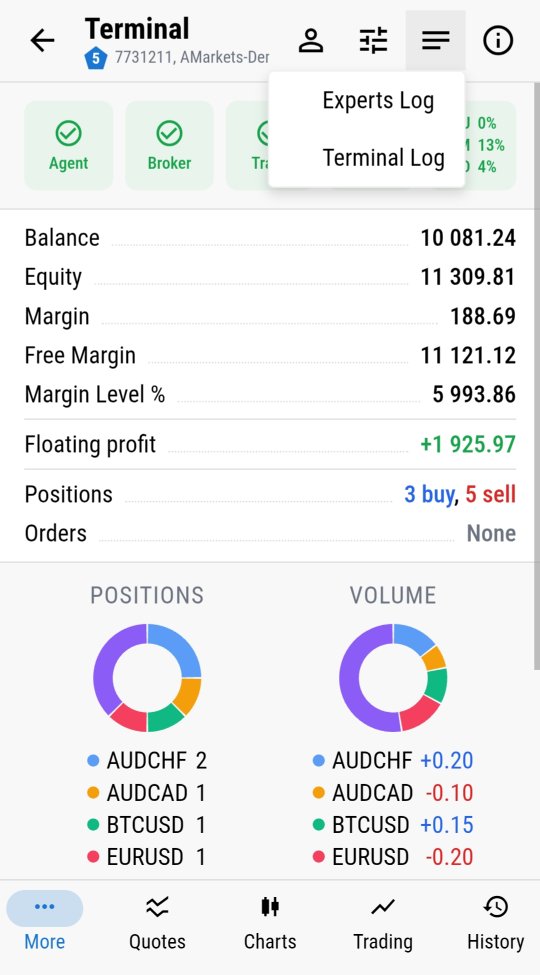
Your EA stopped taking trades. Was it an error? A broker disconnect? Did it just decide to sit this one out?
Without the terminal in front of you, that question used to mean waiting until you were back at your desk - or opening a remote desktop session just to read a log file. MTRemote removes that wait: it streams the same logs your MetaTrader terminal keeps, straight to your phone.
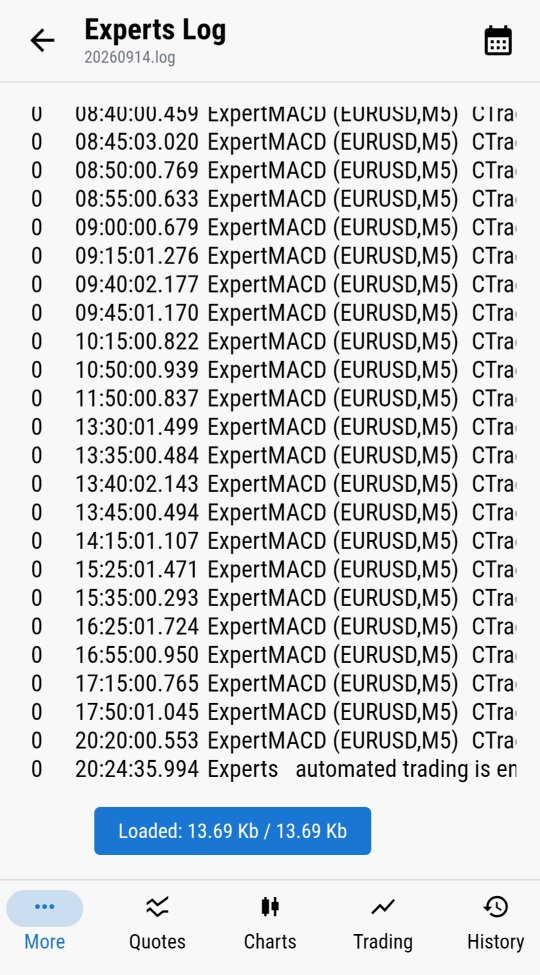
Experts Log
Every message your EA has printed, in order, with a timestamp attached. If it opened a position, hit an error, or went silent, the Experts Log shows exactly when and what happened - the same detail you would see in the terminal's own log tab, just formatted for a phone screen.
This matters most in the moment you actually need it: an EA that stops trading mid-session almost always leaves a trace in this log, whether that is a rejected order, an invalid stop level, or a plain connection drop. Reading it remotely turns "something's wrong, I'll check later" into "here's exactly what went wrong, right now."
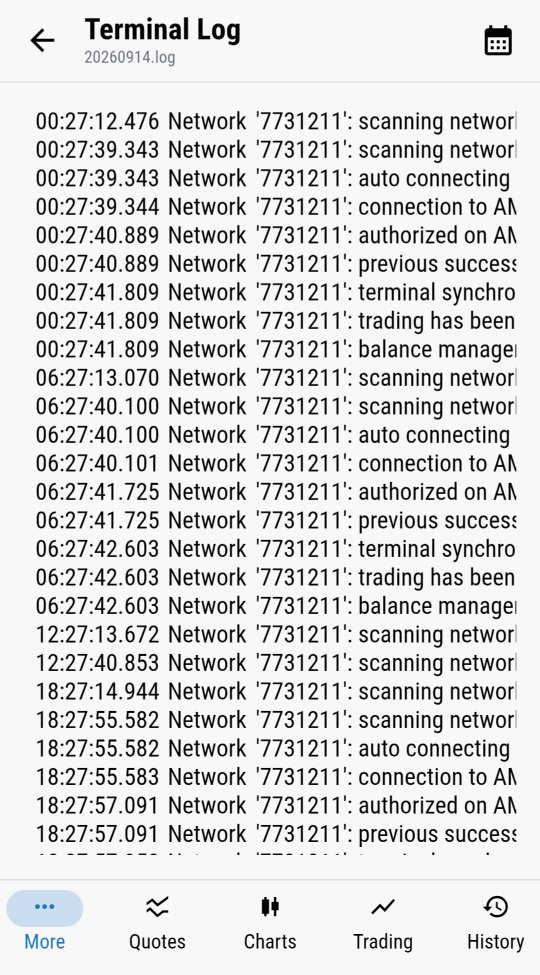
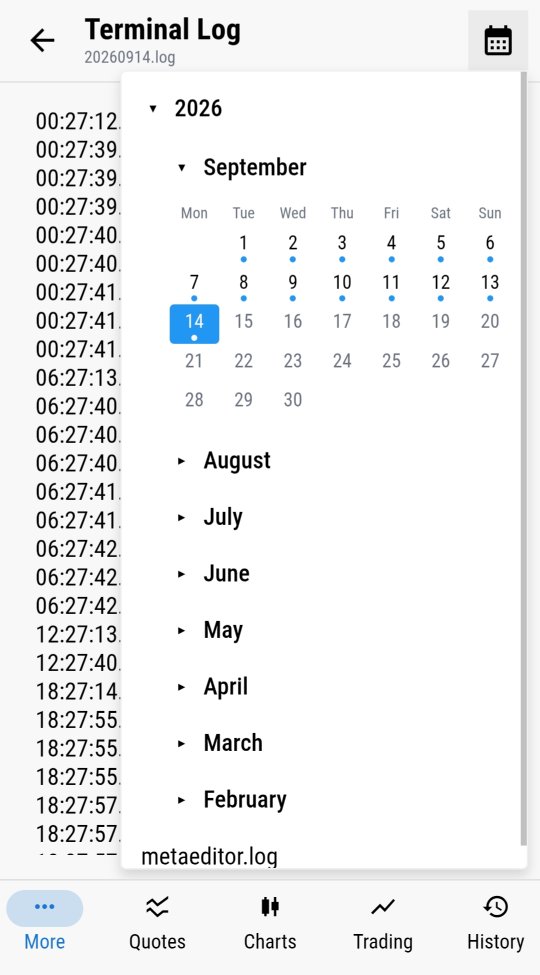
Terminal Log
Below the EA's own output sits a second, more technical stream: connection events, authorization, synchronization status, and trading permissions. This is the log MetaTrader itself keeps about its own health - useful when the question isn't "what did my EA do" but "is the terminal itself actually working."
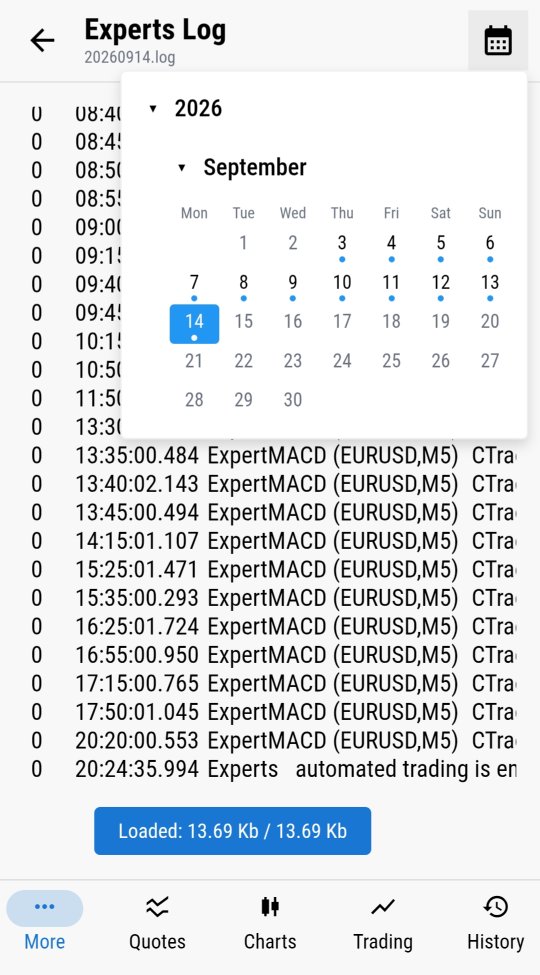
Full history, not just today
Both logs go back further than the current session. Pick any date from a calendar and pull up that day's log exactly as it looked at the time - useful for reviewing what happened overnight, over a weekend, or during a specific news event you want to check after the fact.
Why this replaces a remote desktop session
The alternative to all of this is opening an RDP connection, waiting for a remote desktop to render, finding the terminal window, and clicking through to the log tab - several minutes for information that should take seconds. MTRemote skips all of it: the agent installed on the trading PC talks to the panel directly, so the log is already there when you open the app.
Logs and monitoring are one part of what MTRemote gives you access to remotely - system diagnostics, market watch, charts and full trading history are covered in the rest of this series.
Ready to see it on your own terminal? Follow the setup guide to install MTAgent and connect.