Short answer: split the problem in two. One part is getting a signal when something goes wrong. The other is being able to open the log at any moment and see what is going on. Push via SendNotification and a Telegram bot handle the first part, but only if the EA's author built them in. A control panel handles the second part without a single line of code, and also tells you when the terminal or the agent stops.
What you need to know about an EA from a distance
When you are away from the computer, the questions are usually these four:
- Is the terminal connected to the broker?
- Is algo trading switched on?
- Is the EA on the chart and running?
- What has it written to the log in the last few hours?
The first three are state, the fourth is history. A good setup answers all four, not just sends a message once something has already happened.
Option 1: push via MetaQuotes ID (SendNotification)
MQL4 and MQL5 have a SendNotification() function: the EA sends a short text, and it arrives as a push notification in the MetaTrader mobile app. To make it work, you install MetaTrader on your phone, copy your MetaQuotes ID from it and enter it in the terminal under Tools - Options - Notifications.
The upside is obvious: it is free, built into the platform and needs no third-party service. The limits are just as real:
- You only get a notification if the EA's author planned for it. If there is no
SendNotification()call in the right place, you hear nothing. - It is a signal, not a log. The text is capped at 255 characters, and the platform limits how often you can send - a couple of messages per second and no more than ten per minute.
- If the terminal freezes or loses its connection, there is nobody left to report it. An EA cannot send a notification about the fact that it has stopped working.
Option 2: your own Telegram bot
The other popular route is sending messages to Telegram. You need a bot and its token, code in the EA (or an external script) that calls WebRequest(), and api.telegram.org added to the list of allowed URLs in the terminal settings.
It is flexible: you can send anything in any format, even chart screenshots. But it is a development project of its own - the code has to be written and tested, the token looked after, and things fixed when something changes. It also shares the weakness of push: the bot only knows what the EA tells it, and if the EA is someone else's closed product, you cannot add messaging to it.
Option 3: a ready-made panel
The third approach is to stop waiting for messages from the EA and look at the terminal directly. With MT-Remote and the free MT-Radar, a program called MTAgent runs next to your terminal and the panel opens in your phone's browser. The terminal's main screen shows whether it is connected to the broker, whether algo trading is on and whether the EA is running.
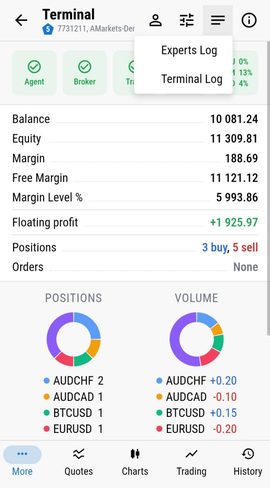
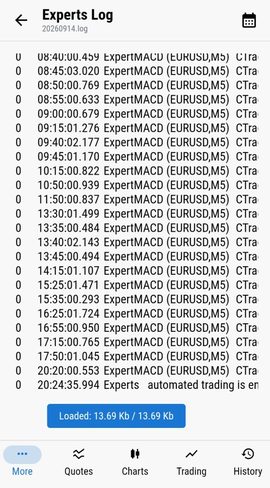
The Experts and Terminal logs open in full - the same lines you see on the tab in the terminal itself. The EA does not send anything special: the panel reads what it already writes.
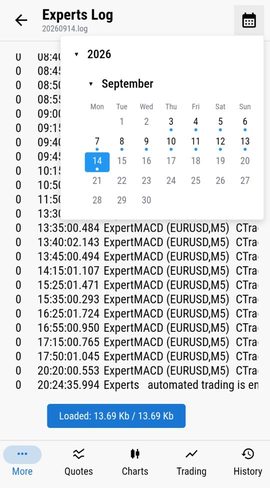
Logs for earlier days are picked from a calendar, which is handy for working out what happened overnight or over the weekend.
On top of that, the panel sends a push notification when the terminal or the agent starts and stops - exactly the situation in which the EA cannot report anything itself. The panel does not receive custom messages from the EA: it is not a replacement for SendNotification(), it is a different tool. More on the logs in Remote Logs and Monitoring.
Side by side
| SendNotification | Your own Telegram bot | Panel (MT-Remote / MT-Radar) | |
|---|---|---|---|
| EA has to be changed | Yes | Yes (or an external script) | No |
| Works with someone else's closed EA | Only if the author built it in | Only if the author built it in | Yes |
| Full log visible | No, short messages | No, only what was sent | Yes, Experts and Terminal |
| History for past days | Notification feed | Chat history | Log for any date |
| Tells you the terminal stopped | No | No | Yes, push on start and stop |
| Setup | MetaQuotes ID in the terminal | Bot, token, code, allowed URL | Agent and connection, about 10-15 minutes |
Which one to choose
These options do not exclude each other. If your EA already sends trade signals through SendNotification() or to Telegram, keep them. The panel covers what messages lack: reading the full log, checking the terminal's state and finding out that it has stopped. And if the EA is not yours and cannot be modified, the panel is the only one of the three that works without touching the code.
If you currently log in to the VPS over RDP just to read the log, also see RDP, AnyDesk or a Remote Control Panel.
How to start
Logs, the EA state and push notifications on terminal start and stop are all in the free MT-Radar. It is view-only and cannot trade. Setup takes about 10-15 minutes and is described step by step in the installation guide. When you also want to act from the phone - remove an EA, switch algo trading off - MT-Remote adds control in the same panel. Want to see it first? Open the free live demo.
Questions
Can I read the log for past days?
Yes. The Experts and Terminal logs in the panel have a calendar: pick a date and the log for that day opens.
What should I do if the EA has gone quiet?
First check the terminal's main screen in the panel: is it connected to the broker, is algo trading on, is the EA running. Then open the Experts log - the reason is almost always in the last few lines: a rejected order, an error or a lost connection. If the terminal itself stopped, the panel sends you a push about it.
Do I need to change the EA's code?
No. The panel reads the logs and the terminal's state; the EA does not have to send anything. It works with any EA, including ones bought on the Market.
Can I get the panel's notifications in Telegram?
No. The panel sends push notifications to your phone when the terminal or the agent starts and stops. If you want messages in Telegram, they have to be set up in the EA itself, as described above.